
Importing open items is part of going live with Odoo Accounting. Below is the description and the posting logic for importing open sales and purchase invoices. The import files for sales and purchase are almost identical. First create the suspense accounts 110001 and 130001, plus the journals purchase invoices opening balance and sales invoices opening balance.
Download: Open items import template (XLSX)
There is also a video walking through the full procedure. The steps are written out below.
Procedure for sales and purchase invoices
The standard Dutch chart of accounts in Odoo uses ledger number 110000. From the opening balance, we do not want to post here directly. We want to create a credit amount on a balance-sheet account equal to the debit amount you post for the total of the open sales invoices when entering the opening balance.
So use an extra ‘receivables account’ that serves as a temporary suspense account, for example account 110001. The ‘revenue’ is posted here when the invoices are imported. On import you get the entry:
110000 Receivable
    to 110001 Total outstanding / 'revenue' (do not post VAT)
Your chart of accounts then looks like this:
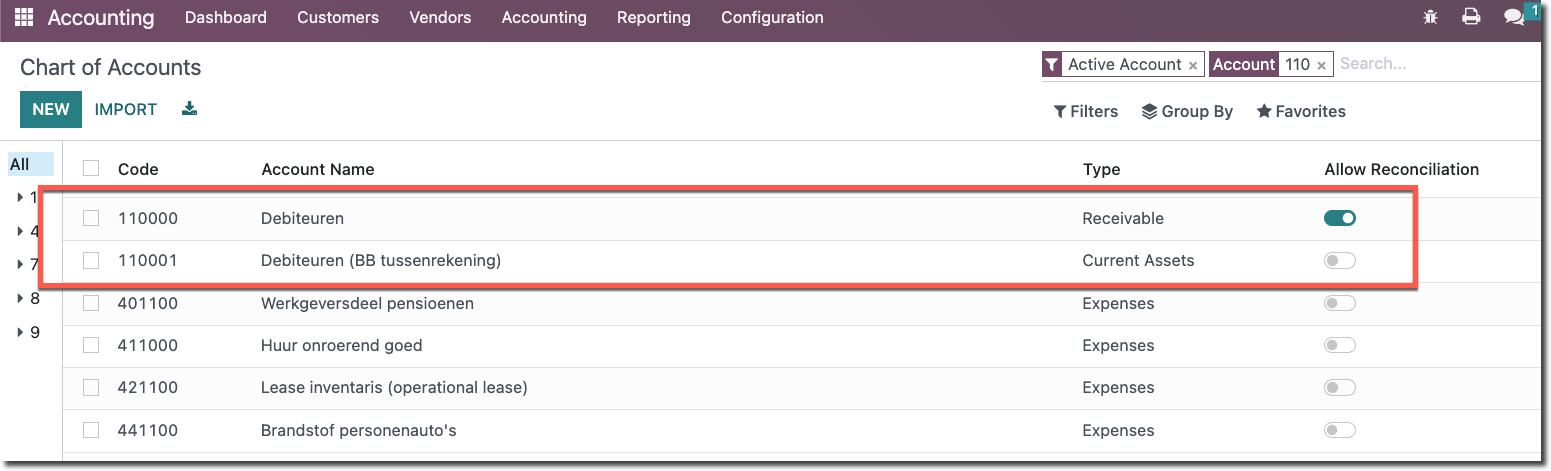
When you enter the opening balance, account 110001 is reversed (debited) again. The open items are now outstanding and can be reconciled against the bank.
The import file
The import file in Excel might look like this:
| Number | Partner | Invoice_date | Due Date | Reference | Unit Price | Label | Account |
|---|---|---|---|---|---|---|---|
| INV/2022/00001 | Deco Addict | 2022-12-08 | 2022-01-07 | S00003 | 22137,5 | Opening balance | 110001 |
| INV/2022/00002 | Deco Addict | 2022-12-08 | 2022-01-07 | S00002 | 48012,5 | Opening balance | 110001 |
| INV/2022/00003 | Azure Interior | 2022-12-01 | 2022-01-31 | S00001 | 36512,5 | Opening balance | 110001 |
| INV/2022/00004 | Deco Addict | 2022-11-30 | 2022-12-30 | S00004 | 36512,5 | Opening balance | 110001 |
The price column and the two next to it map in Odoo to Invoice Lines / Unit Price, Invoice Lines / Label and Invoice Lines / Account.
Note: an important extra column to add is Invoice Lines / Taxes. Leave it empty. If you do not, Odoo adds VAT to the line based on the customer’s fiscal position, which throws off the amount. For purchase invoices this is not needed, so test it mainly for the sales invoices.
Importing and posting
Go to the Customer Invoices journal and start the import there.
Note: if the invoice numbers are not sequential, you get an error after importing that the numbers are not consecutive. In that case, create a new journal, Customer Invoices (Opening balance), and import the invoices there. You can archive that journal afterwards. For credit notes, add an extra Journal_ID column and enter Customer Invoices (Opening balance) there.
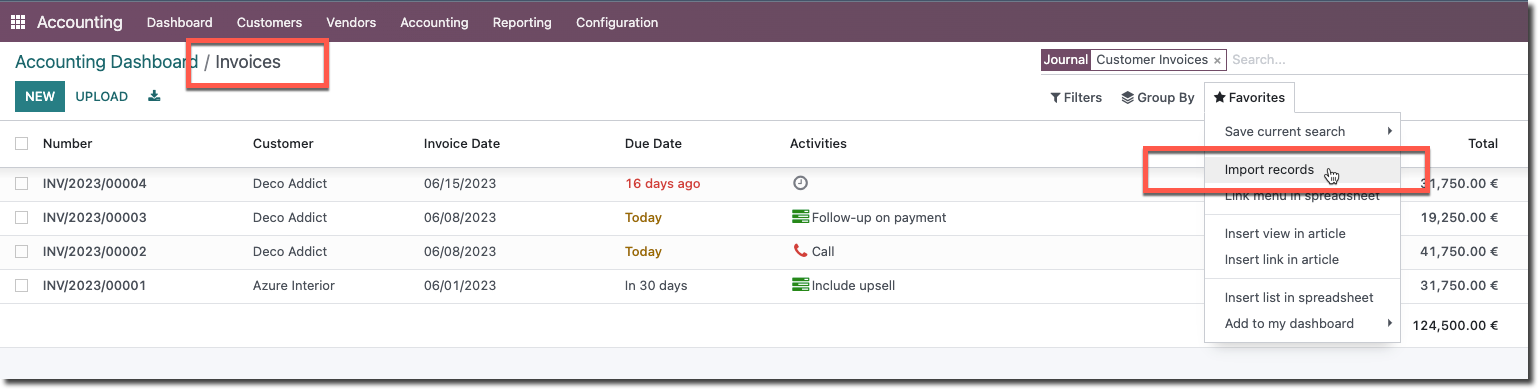
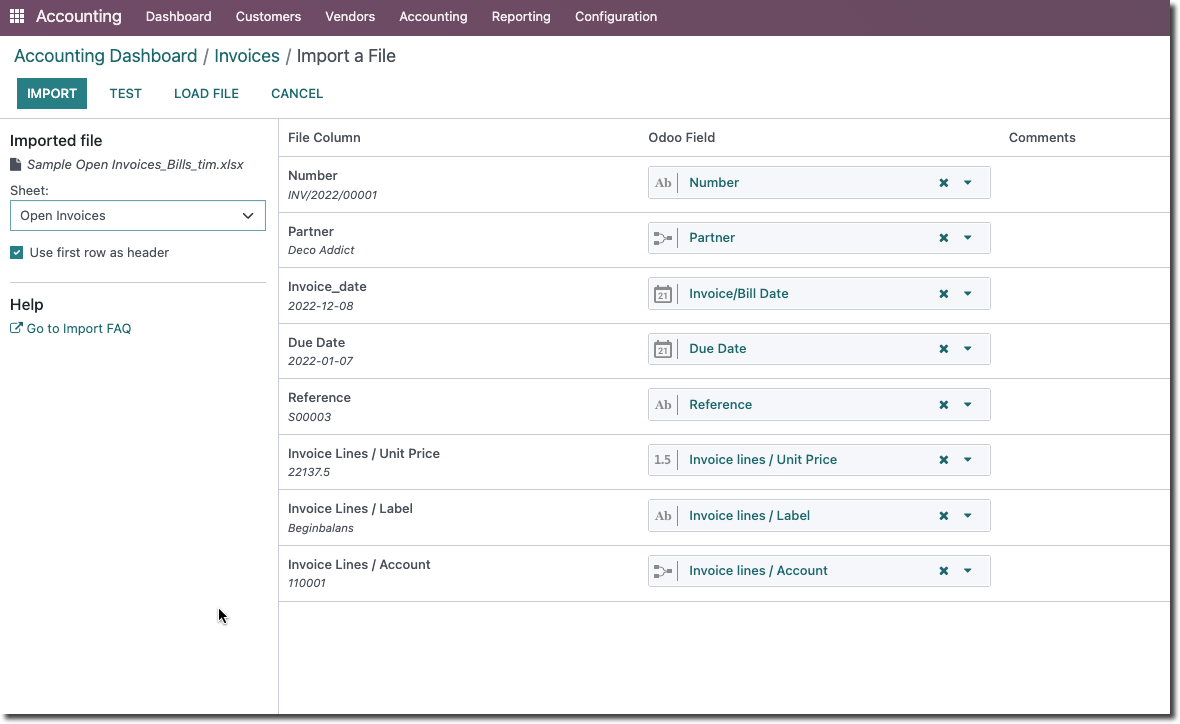
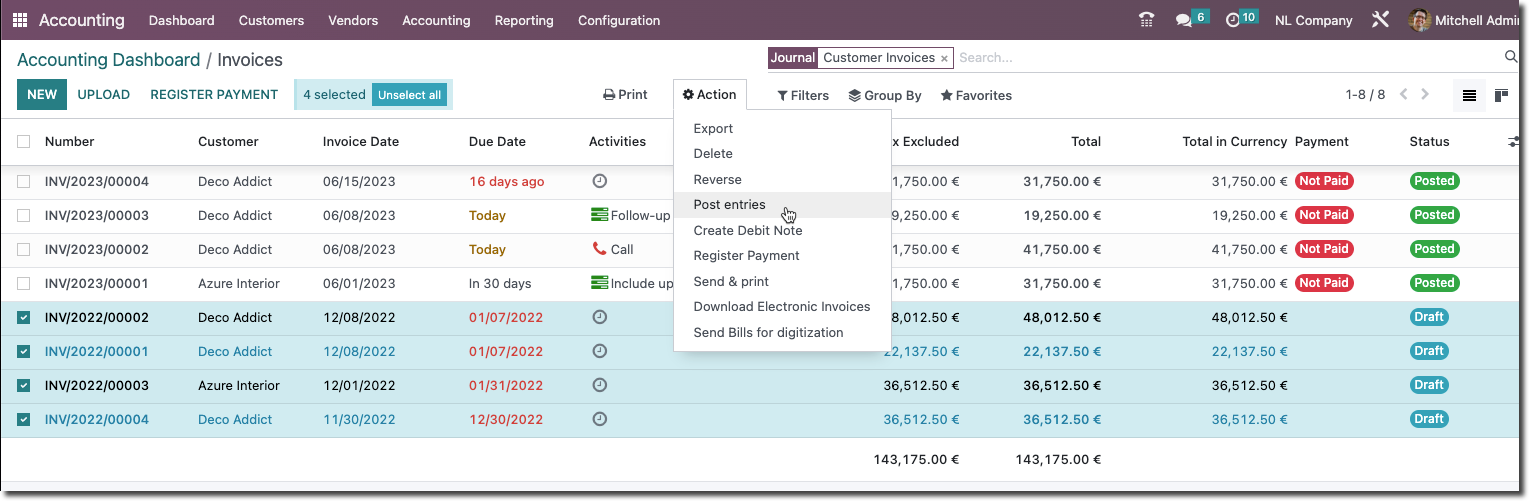
After importing, post the open items with Post Entries:
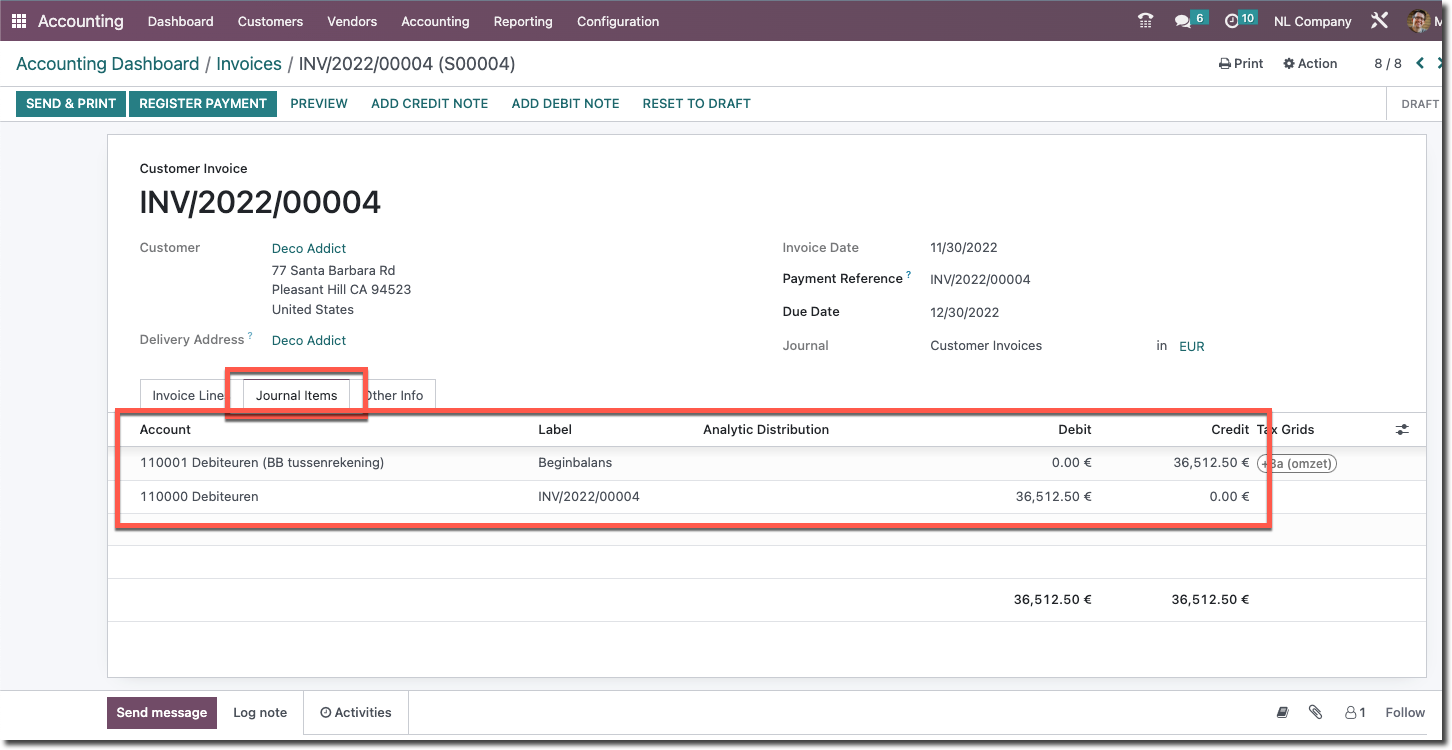
Open one of the invoices and go to the Journal Items tab, and you see the entry created for that item:
The total of all imported open items is now both debit on 110000 Receivables on the balance sheet and credit on 110001 Receivables (opening-balance suspense), in our example € 143,175.00:
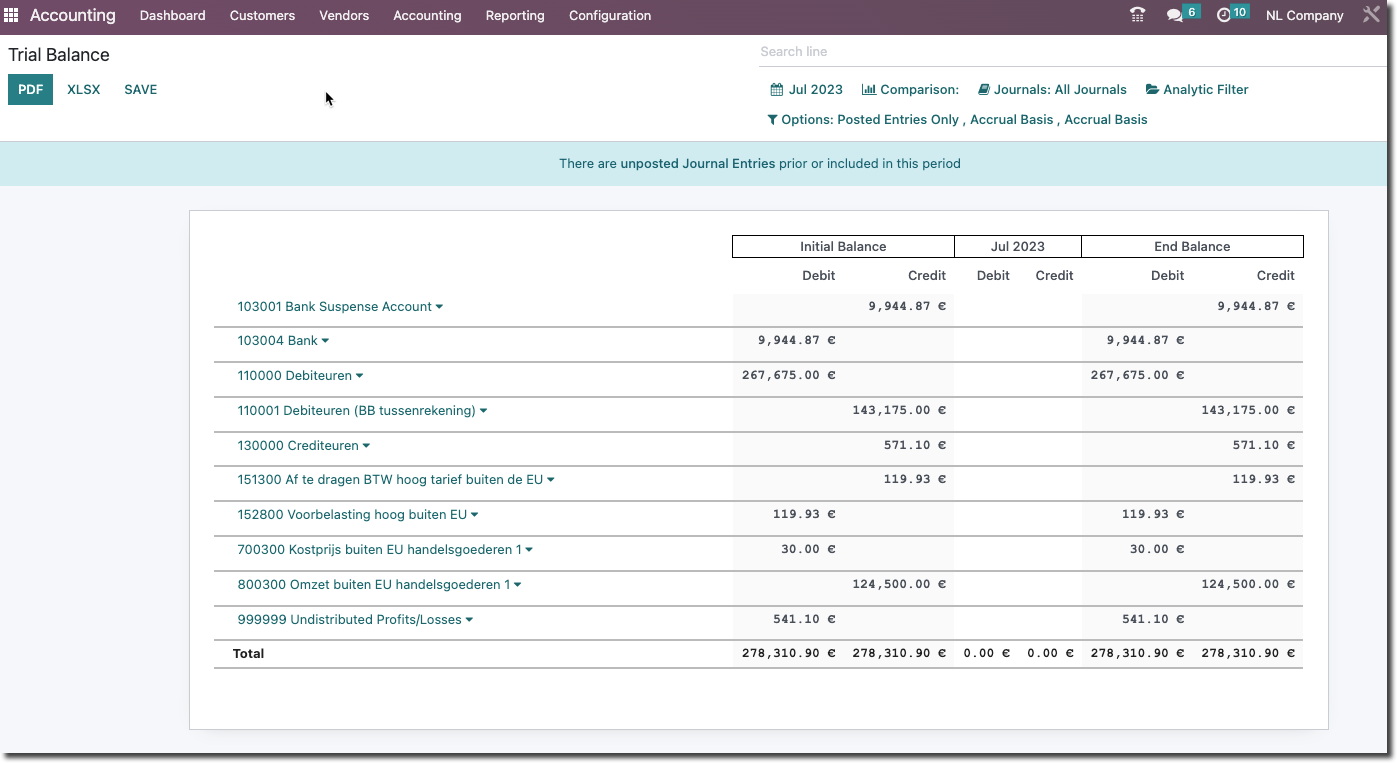
When you post the opening balance, 110001 is reversed again.
Need a hand with your import?
Stuck on the import file or the entries? Book an Odoo scan or get in touch - we will take a look with you.